
From photo to reviewed expense
- Add the document
Use the camera, select an image from Photos or add several pages for one long receipt.
- Allow optional AI processing
Before receipt content is sent for recognition, Reece explains the processing and asks for permission.
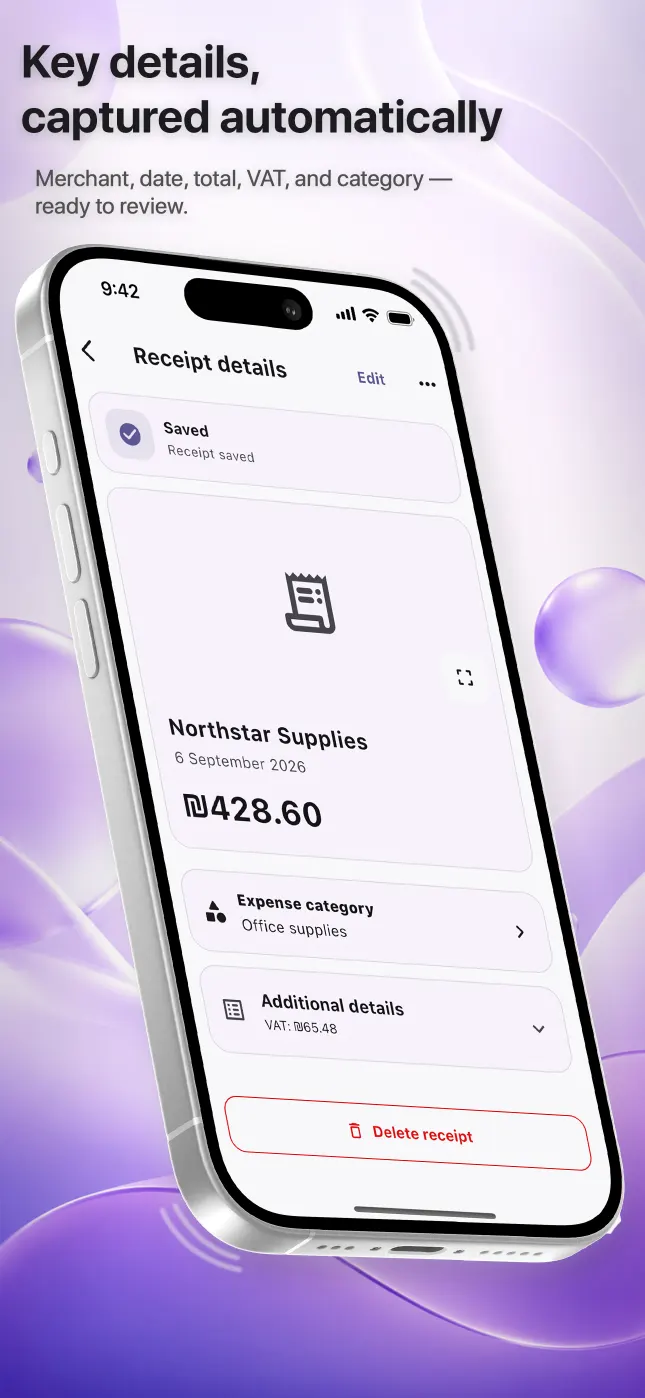
- Review the result
Compare the recognized fields with the original and edit anything that is incomplete or wrong.
- Save the record
Choose or adjust the category and keep the expense searchable with its source image.
How to get a clearer scan
- Place the receipt on a contrasting, flat surface
- Include all edges and every page
- Avoid glare, heavy shadows and motion blur
- Keep small totals and VAT lines sharp enough to read
- If recognition is uncertain, enter or correct the fields manually
What scanning cannot guarantee
Faded thermal paper, folds, handwriting, unusual layouts and incomplete photos can reduce recognition quality. No automated scanner is a substitute for checking the source. Reece deliberately keeps the review step in the workflow and leaves manual entry available.
Questions people ask
Which fields can Reece recognize?
Reece can recognize the merchant, date, total, VAT and currency when they are legible. It can also suggest an expense category for you to review.
Can I scan a long receipt?
Yes. You can add several images as pages of one receipt. Make sure the pages overlap enough to preserve context.
What if I do not allow AI processing?
Receipt content is not sent for recognition. You can still enter an expense manually and use other non-AI functions.